
Getting started
Get started quickly and easily with the DiaExpert Sensor 2
Follow these 4 steps and you can begin using your new sensor.-
STEP 1: INSTALL DIAEXPERT CGM 2 APPSearch DiaExpert CGM 2 on Google Play or App store.

-
STEP 2: REGISTER AN ACCOUNTRegister with DiaExpert CGM 2 with your e-mail address and password.
* For a list of compatible devices, go to diaexpert.com/downloads. Or use the separately available DiaExpert receiver.
-
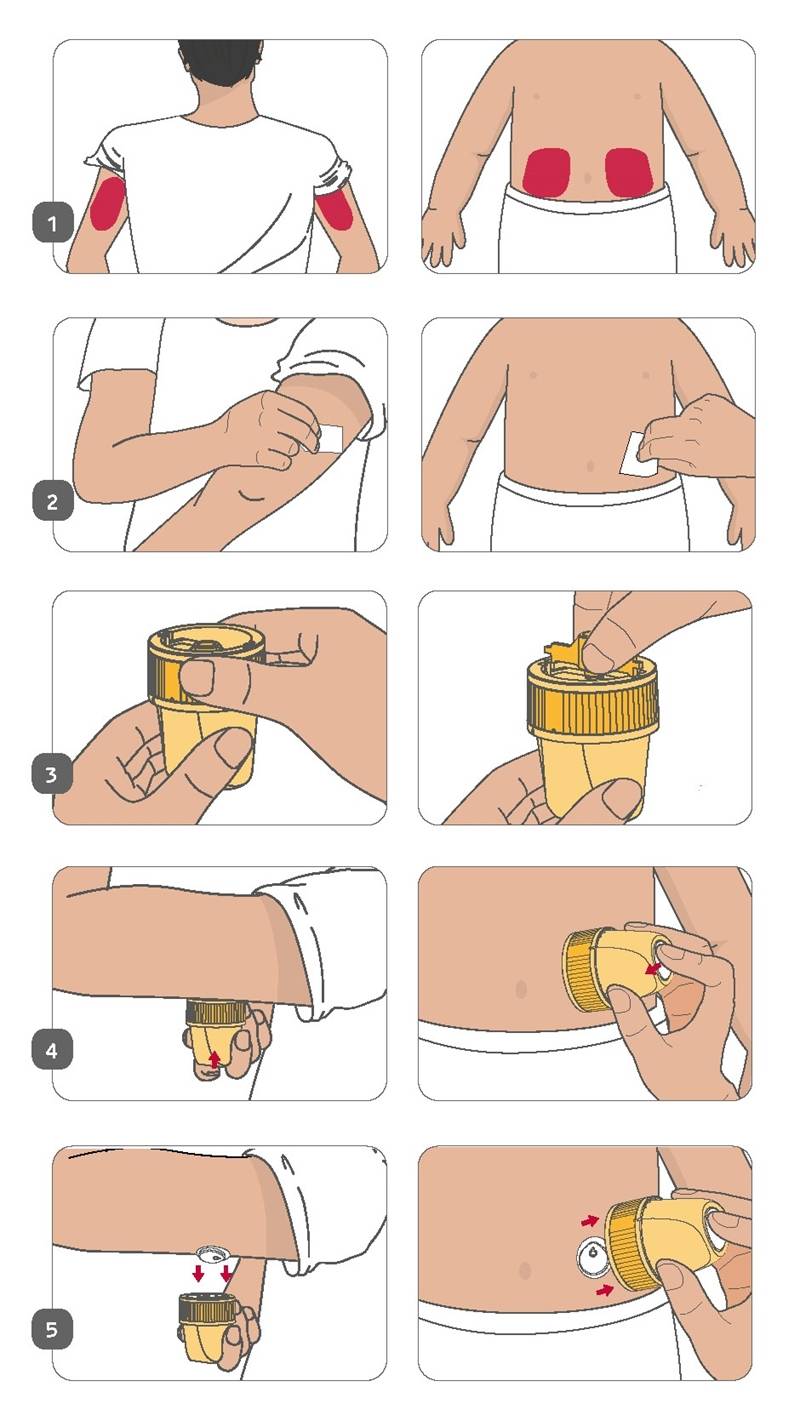
STEP 3: APPLY THE SENSOR
Open the package and select Insertion Area.
Upper arm (≥ 18 years): The back of the upper arm (don’t insert into the muscles on the outer side of the upper arm).
Abdomen (2–17 years): Avoid inserting around the navel, scars, subcutaneous induration, and the waistband.
Sterilize the insertion site with an alcohol wipe
Move the ring-shaped component anticlockwise; once released gently pull out the inner part.
Align the opening of the applicator with the insertion site tightly and press the white implantation button of the applicator. After hearing the sound of the spring retreating, the sensor will be inserted underneath the skin and the puncture needle will automatically retreat back into the applicator.
Gently pull the sensor applicator away from the body, and the sensor should now be attached to the skin.
- After installing the sensor, make sure that the sensor is firmly in place. Use your fingers to flatten the edge of the sensor to avoid wrinkles and warping.
-
STEP 4: PAIR SENSOR WITH DIAEXPERT CGM 2 APP
- Log in on the DiaExpert CMG 2 app.
- Make sure the phone’s bluetooth is turned on.
- Click “pairing” on the home dashboard.
- Select and click the correct SN number of the sensor listed on the Nearby Device list, starting with “DiaExpert”. Make sure the selected SN number is in accordance with the number printed on the packaging box and the applicator cover.
- Wait for a successful pairing.
You are ready and set!
After the warmup time of 60 minutes, the app will display your glucose values, updated every minute. The sensor can be worn for up to 15 days. The app will let you know how many days you have remaining. For more details on use of the DiaExpert Sensor 2, you can refer to the complete user guide in the download section.Remaining questions? Have a look at our FAQ section or contact Mediq. They are happy to help!
Sharing information with your healthcare provider
DiaExpert Sensor 2 shares your glucose data with healthcare providers using the DiaExpert Pancares data management platform.
DiaExpert Sensor 2 is connected with Glooko to simplify diabetes management in a single integrated ecosystem.
Try out the new DiaExpert Sensor 2
With the new DiaExpert Sensor 2 (continuous glucose monitoring system), we support you with your diabetes. The DiaExpert Sensor 2 is exclusively available from Mediq. Mediq has a wide range of diabetes materials and knowledge to learn more about the new DiaExpert Sensor 2?
You can now request a free sample*.Contact Mediq Netherlands
* conditions apply